A+ Lab 2 — Slow PC: Task Manager Deep Dive
This lab teaches one of the most common real-world support complaints: “My computer is really slow.” Your job is to stop guessing, open the right tool, identify the bottleneck, and leave a clean technician note.
User reports: “My computer is taking forever to open apps. Everything feels slow.”
Priority: Medium • Scope: Single workstation • Goal: identify whether the slowdown is driven by CPU, memory, disk, or a runaway process.
⏱ 20–30 minutes • 📊 Beginner / early A+ • Goal: observe → diagnose → fix → verify.
What a Real Tech Should Ask First
- When did the slowdown start?
- Is the whole system slow, or just one app?
- Did anything recently update, install, or change?
- Is the problem constant, or only at startup?
Print mode auto-shows all steps and hides the hero image + progress UI.
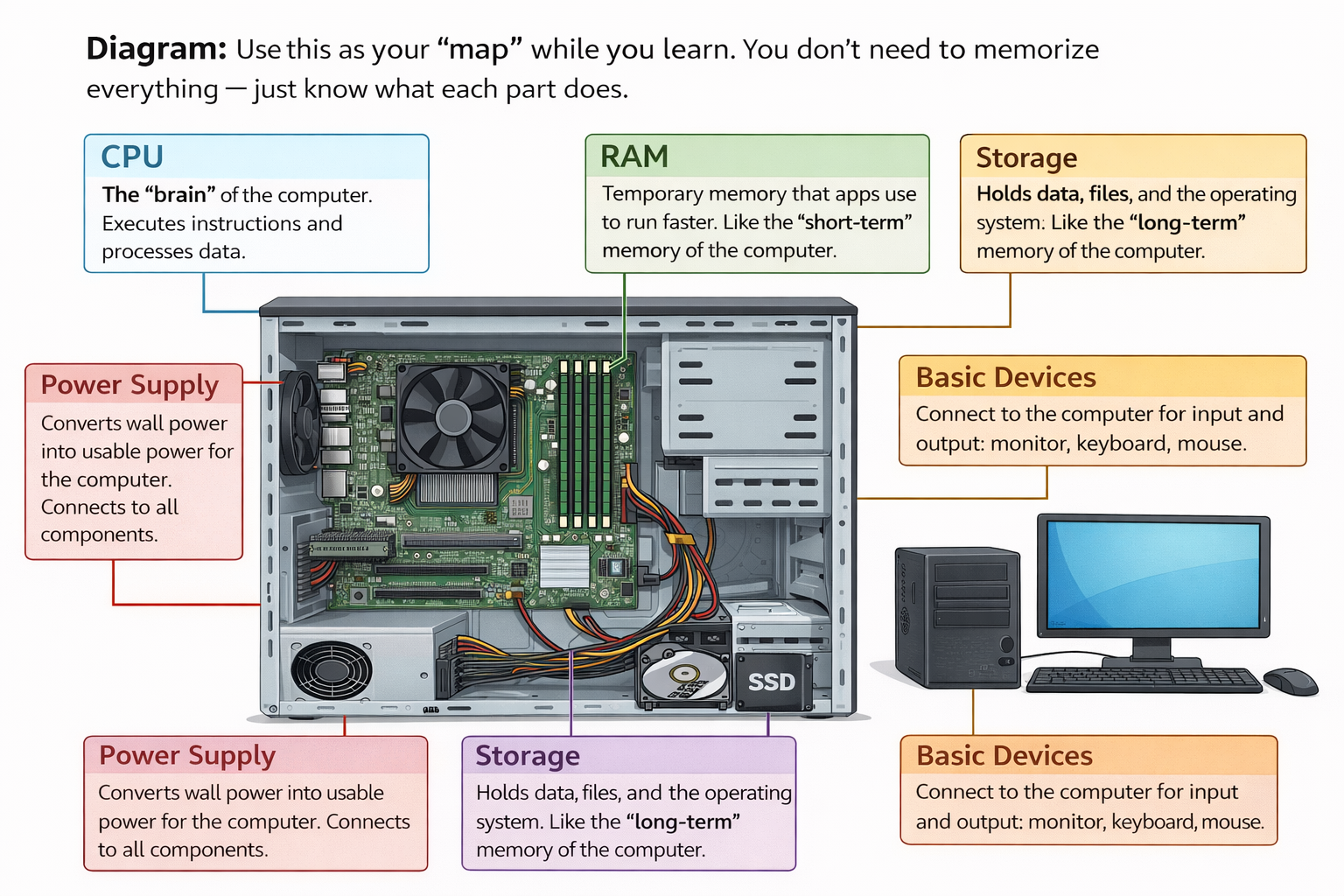
What You Need
- A Windows PC or Windows VM
- Access to Task Manager
- Spot high CPU, memory, or disk usage
- Identify whether the issue is temporary or ongoing
- Write a professional support note
Don’t jump straight to “the computer needs more RAM” or “reinstall Windows.” First prove what resource is actually overloaded.
Real-World Translation
“My computer is slow” is one of the most common support tickets in offices, schools, and remote work environments.
A real technician starts with evidence: CPU, memory, disk, startup load, and active processes.
Break / Diagnose / Fix
Create a safe slowdown scenario you can observe in Task Manager.
Option A — Startup load
- Open several browser tabs, apps, or file windows at once.
- Start a large file copy or software update if available.
- Leave background apps open and observe system behavior.
Option B — Heavy browser/app load
Open enough apps or tabs to create a visible slowdown. The point is not to crash the machine — the point is to generate a measurable performance issue.
Confirm the symptom
The user experience should feel slow: delayed opening, lag, or long response time.
Identify which resource is actually under stress.
Open Task Manager
- Press Ctrl + Shift + Esc
- Go to Processes
- Sort by CPU, then Memory, then Disk
What healthy vs broken looks like
- High CPU → a process is actively consuming processing power
- High Memory → many apps/tabs or one heavy process is using RAM
- High Disk → updates, indexing, scanning, or disk bottlenecks may be slowing everything
- Temporary spike ≠ permanent issue; re-check after a minute
Look for clues
- Is one app dominating the list?
- Is Windows Update or antivirus scanning?
- Is usage briefly high, or pinned near 100%?
- Does the system improve after closing an app or waiting for updates?
Reduce the bottleneck and prove whether performance improves.
Possible fixes
- Close the process or app creating excessive load if appropriate.
- Let updates or scans finish if they are the clear cause.
- Restart the system if the load appears temporary and the user has saved work.
- Reduce startup apps if the issue repeats after boot.
Verify
- Re-open Task Manager and compare CPU, memory, and disk usage
- Open an app and see whether performance improves
- Confirm whether the user symptom is reduced or gone
Do not write “fixed.” Write what you observed, what you changed, and what improved.
Write the ticket note
Use: Symptom → Checks → Actions → Result
What This Skill Maps To
- Troubleshooting methodology
- Operating system support
- Task Manager usage
- Performance bottleneck identification
- Ticket documentation discipline
Self-Check Quiz
Use this quick check to reinforce the lab. Your score is saved on this browser, but the next lab is always available.
1) A user says the PC is slow. What is the best first technical tool to open?
2) Which Task Manager column helps identify a process that is heavily using RAM?
3) If disk usage is near 100% during updates, what is often the best response?
4) Which ticket note is strongest?