Hardware & Devices (Computer Components)
By the end of this lesson, you’ll understand the major hardware components of a computer, what each one does, and how they work together. This is the foundation you’ll use later for troubleshooting and networking.
What is computer hardware?
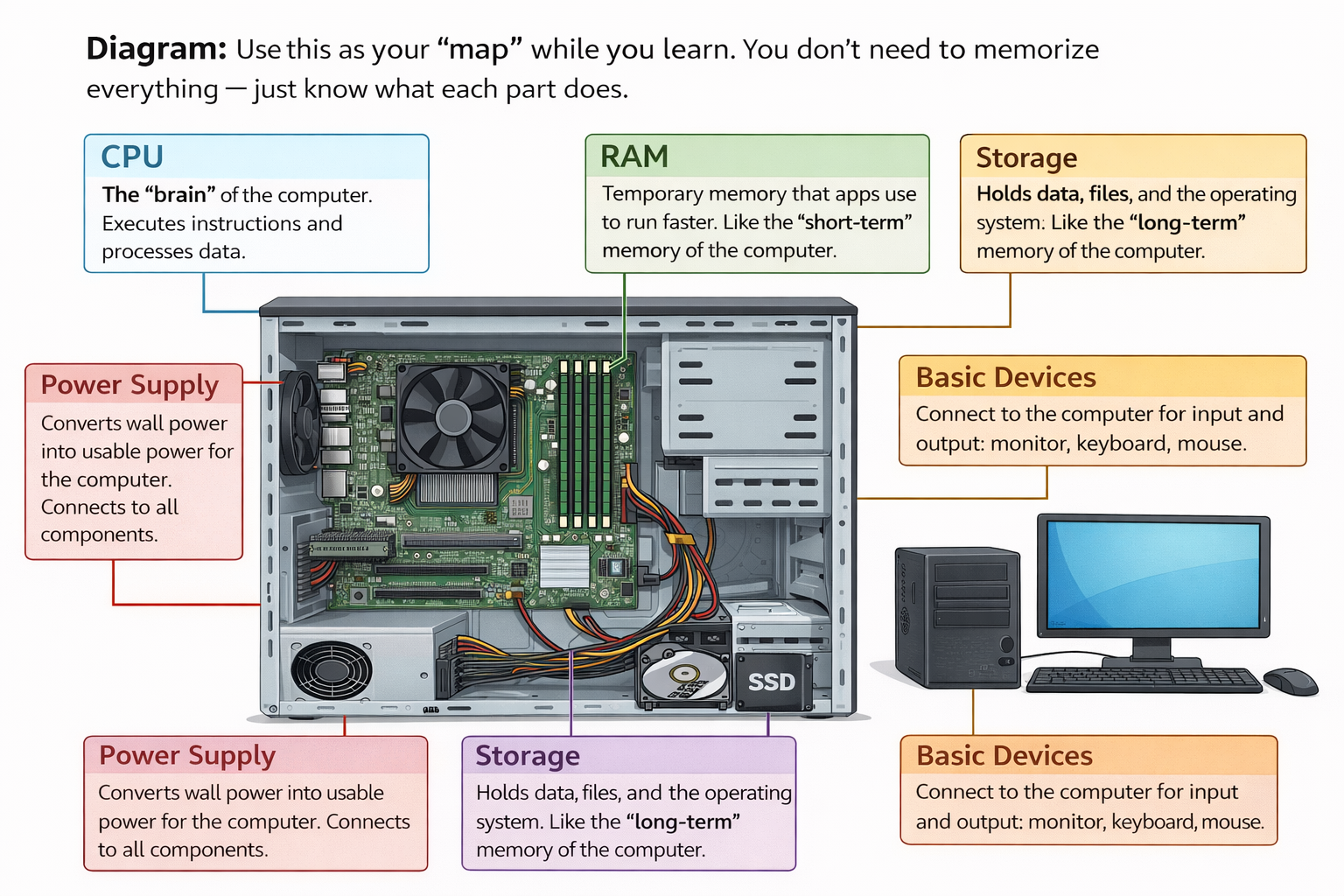
Hardware is the physical parts of a computer you can touch. Hardware does the work, while software tells it what to do.
Examples: CPU, RAM, storage, motherboard, power supply, and input/output devices.
Core internal components
These are the “must-know” parts inside a computer. Don’t overthink specs yet — focus on what each part does.
CPU (Central Processing Unit)
The “brain” that executes instructions and performs calculations.
Mental model: CPU = decision-maker.
RAM (Random Access Memory)
Short-term working memory for tasks happening right now.
Key: RAM is volatile (clears when power is off).
Storage (HDD / SSD)
Long-term memory where the OS, apps, and files live.
Key: storage is non-volatile (keeps data without power).
Motherboard
The main board that connects components and lets them communicate.
Mental model: motherboard = highway system.
Power Supply (PSU)
Converts wall power into usable power and distributes it to components.
Tip: weak/bad PSU can cause random crashes.
Input / Output Devices
Input sends data in (keyboard/mouse). Output sends data out (monitor/speakers).
Rule: Input = in. Output = out.
Input, output, and common ports
Most computers connect devices using a few common ports: USB (keyboards, mice, storage), HDMI (video), Ethernet (network), and Audio (speakers/headsets).
For ITF+, focus on recognizing the purpose — not the version numbers (save that for A+).
How the parts work together (simple flow)
1) You give input (keyboard/mouse) → 2) CPU processes instructions → 3) RAM holds active data → 4) storage supplies long-term data → 5) output shows results (monitor/speakers).
This flow becomes your troubleshooting “mental model” later: if something is slow or broken, you ask which part of the flow is failing?
Practical: Component Match (click-to-identify)
Click a component on the left, then click what it does on the right. You’re building a fast, job-useful mental model.
Component Match
Goal: match each component to its main role. No tricks.Pick a component
Pick what it does
Lesson 4 Quiz: Hardware & Devices
Answer each question, then click Grade Quiz. Aim for 75%+ to move on.
Knowledge Check
Short, direct questions to verify your understanding of core computer components.
1) What does the CPU primarily do?
2) Which memory is typically volatile?
3) Where do the operating system and files usually live?
4) Which part connects components so they can communicate?
5) What does the power supply (PSU) do?
6) Which is an input device?
7) Which port is most commonly used to connect a keyboard or mouse?
8) What’s the best simple analogy for RAM?
9) Which statement is true?
10) A computer is slow when many apps are open. Which upgrade most directly helps multitasking?
Next Lesson
Score 75%+ to unlock the next lesson button. (Progress is saved locally on this device only.)