Hardware & Devices (Computer Components)
By the end of this lesson, you’ll understand the major hardware components of a computer, what each one does, and how they work together. This foundation matters because almost every future troubleshooting step starts with knowing which physical part is responsible for the problem.
What is computer hardware?
Hardware is the physical part of a computer you can touch. Hardware performs the work, while software gives instructions.
Examples include the CPU, RAM, storage drive, motherboard, power supply, keyboard, mouse, monitor, and speakers.
Why this matters in the real world
What entry-level tech workers actually do with this knowledge
- Figure out whether a slow computer is more likely a RAM, storage, or software issue.
- Recognize whether a problem is input-related, output-related, or internal hardware-related.
- Understand basic upgrade conversations like adding RAM or replacing an HDD with an SSD.
- Avoid guessing blindly when a device has power, boot, display, or connection problems.
Core internal components
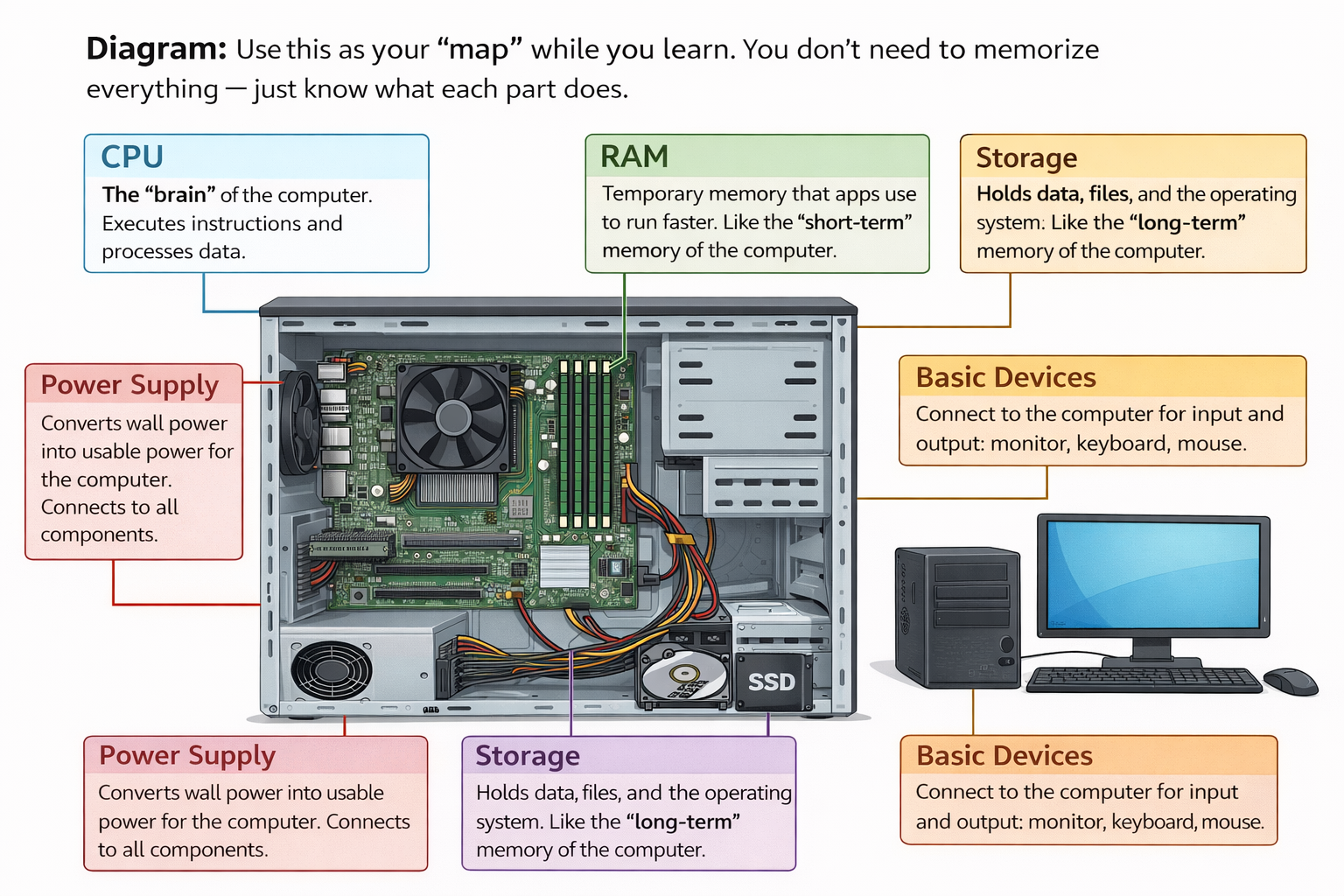
These are the must-know internal parts. For now, focus on function first. You do not need to memorize detailed specs yet.
CPU (Central Processing Unit)
The main processor that executes instructions and performs calculations.
Mental model: the CPU is the decision-maker.
RAM (Random Access Memory)
Temporary working memory for what the computer is doing right now.
Key idea: RAM is volatile, so it clears when power turns off.
Storage (HDD / SSD)
Long-term storage where the operating system, applications, and files live.
Key idea: storage is non-volatile and keeps data without power.
Motherboard
The main board that connects components and allows communication between them.
Mental model: the motherboard is the highway system.
Power Supply (PSU)
Converts wall power into usable internal power for the computer.
Tip: unstable power can cause crashes, restarts, or failure to boot.
Input / Output Devices
Input sends data in. Output sends information out.
Rule: keyboard and mouse are input; monitor and speakers are output.
Input, output, and common ports
Many devices connect through a few common ports: USB for common peripherals, HDMI for video, Ethernet for network connection, and audio ports for sound devices.
For ITF+, the goal is to recognize the purpose of the port, not to memorize every version number.
How the parts work together
A simple mental flow looks like this: input device sends data in → CPU processes instructions → RAM holds active working data → storage provides saved data → output device shows or plays the result.
This matters because troubleshooting starts by asking where the flow is breaking down.
Practical: Component Match
Click a component on the left, then click the role that matches it on the right. This builds the quick recognition skill you want later.
Component Match
Match each part to its job. No tricks.Pick a component
Pick what it does
Lesson 4 Quiz: Hardware & Devices
Use this quiz as reinforcement, then continue forward when you feel ready.
Knowledge Check
Use this quiz to confirm you understand the basic job of each major computer component.